Home / Statistical Tools / Hypothesis Tests / Attribute Tests / Two Sample Poisson Rate Test
Two Sample Poisson Rate Test
From Excel click...
QXL Stat Tools Tab > Hypothesis Tests > Attribute Tests > Two Sample Poisson Rate
| Test type: | Compare two rates |
|---|---|
| Data: | Attribute -- Counts |
| Number of Variables: | 2 |
| Number of Groups: | 2 |
| Assumptions: | Two independent samples of count data, Total Occurrences > 10 |
The Two Sample Poisson Rate Test is a hypothesis test used for testing rate equality between two populations. It assumes that two samples come from independent populations of count data with 10 or more total observations.
Hypothesis tested:
| H0 : | Rate1 = Rate2 |
|---|---|
| H1 : | Rate1 ≠ Rate2 |
where Rate1 and Rate2 are the population rates.
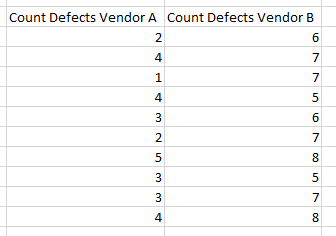
Step #1: Select data source for Two Sample Poisson Rate Test.
Data for the Two Sample Poisson Rate Test can come from an Excel spreadsheet, SQL data source, or it can be entered manually.
Step #2: Options.
Standard options
-
'Not equal to' option. Select this option to run a two-tailed test. The null hypothesis is that the rates are equal.
-
'Less Than' option. Select this option to run a lower-tailed test. The alternative hypothesis is that the rate of the first dataset is smaller than the rate of the second dataset.
-
'Greater Than' option. Select this option to run an upper-tailed test. The alternative hypothesis is that the rate of the first dataset is greater than the rate of the second dataset.
-
'Test for a difference at least:': Enter a difference to detect. The default is zero.
Example
-
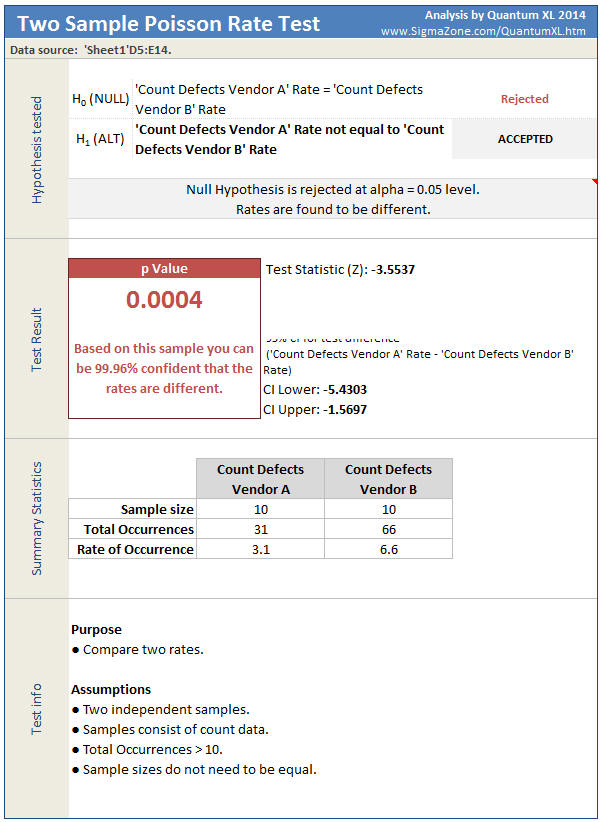
Run Quantum XL > Hypothesis Tests > Attribute Tests > Two Sample Poisson Rate.
-
In the Options dialog, select 'Not equal to' test and enter the difference to detect.
Update
The Two Sample Poisson Rate Test is updatable. After you create the analysis, you can change its data source or add new data to the data source and simply update the analysis.
-
Update: Quantum XL > Statistical Tools > Update Sheet
-
Change settings: Quantum XL > Statistical Tools > Modify Analysis