Home / Monte Carlo / Model Building / I/O Manager
Inputs and Outputs Manager
From Excel click...
QXL Monte Carlo Tab > I/O Manager
I/O Manager is a powerful feature that allows you to have a flexible way to Add, Edit, and Remove single or multiple inputs and outputs. Using the I/O manager enables you to build DFSS models quickly and easily.
Add Inputs/Output
You can add one or more inputs/outputs. Click on button Add Inputs (Add Outputs), and Quantum XL will allow you to select the range of cells you want to define as inputs/outputs. Once you have selected the range of cells, Quantum XL will assign default input properties for the selected cells. For inputs, the default properties are Distribution=Normal, Mean=1, and StDev=1. Note that inputs are not saved in the worksheet at this point. They will be saved after you click the OK button.
Edit Inputs/Outputs
This feature will allow you to edit the parameters for multiple inputs/outputs at a time. Select multiple rows of inputs/outputs that you want to edit and click on button Edit selected inputs (Edit selected outputs). Note that you can select multiple rows by holding the CTRL key on the keyboard and clicking with the left mouse button.
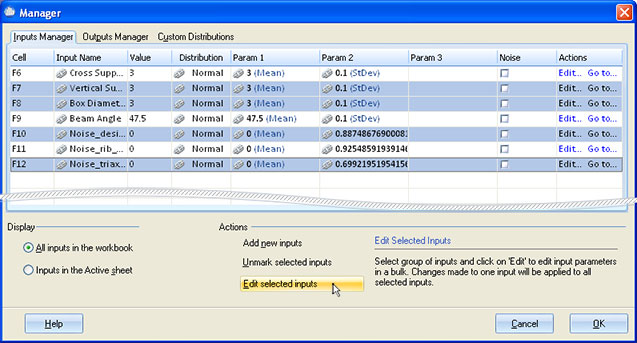
Clicking the Edit button will bring up the Define Input dialog.
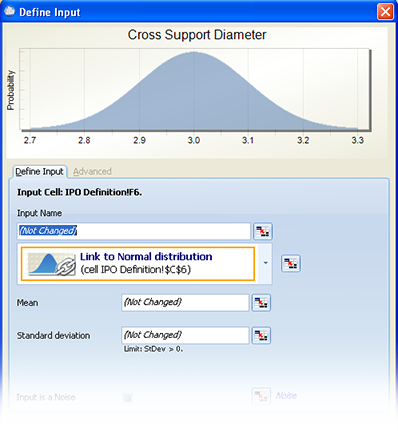
Properties with words (Not changed) will not be modified after you click Ok. If you change some of those properties, the following will occur:
-
If you change Input Name, i.e., to "My Input", the names for the selected inputs will be changed to "My Input", "My Input 2", "My Input 3", ....
-
Changing the distribution or other parameters like Mean and StDev applies to all selected inputs.
-
If you set some of the parameters to link to a specific cell, all selected inputs will also link to the appropriate cells. For example, if the selected inputs were defined for cells B1, B2, and B3, and you change Input Name to link to cell A1, the name for Input B2 will link to cell A2, and the name for input B3 will link to cell A3.
Unmark Inputs / Outputs
This feature will allow you to unmark cells defined as inputs/outputs. Select multiple rows of inputs/outputs that you want to remove and click on button Unmark selected inputs (Unmark selected outputs). Note that you can select multiple rows by holding the CTRL key on the keyboard and clicking with the left mouse button.
Inputs/Outputs marked for deletion are formatted italic with a strikethrough font. You can toggle this state by pressing the Unmark button again.
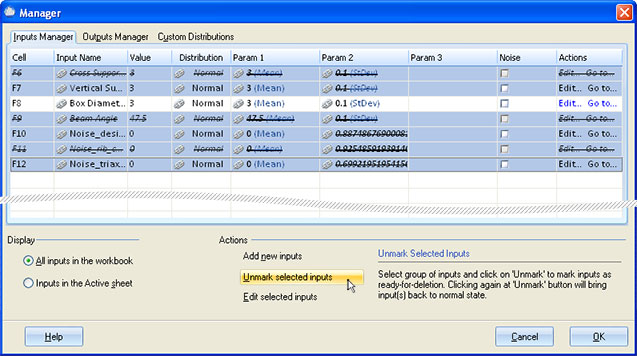
Actions column
The Actions column contains two links. The 'Edit' link will bring up the Define Input dialog so you can edit the input parameters. Some of the parameters cannot be edited directly in the grid. These parameters are linked to a cell and have a link icon ( ).
).
'Go to...' link in the Actions column will close the Manager dialog and set the focus on the Excel cell.
Display
You can manage all inputs and outputs in the workbook or only those defined for the active sheet by selecting the options 'All inputs in the workbook' or 'Inputs in the Active sheet'.
Custom Distributions
The I/O Manager also allows you to add, edit, or remove custom distributions. More information is available here.