Home / Statistical Tools / Additional Tools / DSM / DSM Navigator
DSM Navigator
From Excel click...
QXL Stat Tools Tab > DSM > DSM Navigator
A design structure matrix can be very large, with many tasks that have long descriptions. It is hard to navigate such a DSM. Quantum XL has a tool, the DSM Navigator, that will make it easier to fill large DSMs.
Navigator
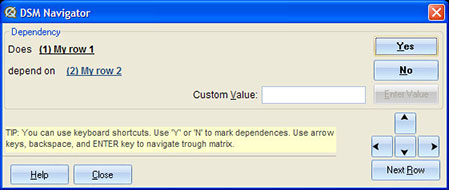
To navigate, click on the buttons or use keyboard shortcuts. Below is the list of buttons, keyboard shortcuts, and actions.
| Button | Keyboard Shortcut | Action |
|---|---|---|
| Yes | Y key or X key | Marks intersection of current row and column. This puts an 'X' in the appropriate DSM cell. Focus is set to the next cell in the matrix (next column, or first column of the next row if the current column is the last one). |
| No | N key or Space key | Unmark intersection of current row and column. This puts an empty value in the appropriate DSM cell. Focus is set to the next cell in the matrix (next column, or first column of the next row if the current column is the last one). |
| Enter Value | Enter key or Tab key, while in the Custom Value text box | Use Custom Value text box to enter text other than 'X'. After hitting the Enter key, focus is set to the next cell in the matrix (next column, or first column of the next row if the current column is the last one). |
| Arrows | Arrows | Use arrows to navigate to desired cell. |
| Next Row | Enter key, if focus is not in the Custom Value text box | Moves the focus to the first column of the next row. |