Home / DOE / Create Designs / Create Custom Design
Create Custom Design
From Excel click...
QXL DOE Tab > Create Design > Create Custom Design
Custom Designs can be created by selecting QXL DOE Tab > Create Design > Create Custom Design. Custom designs allow you to create your own design matrix or to analyze historical data.
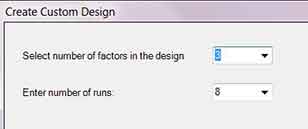
Enter the number of factors (inputs) and the number of runs in the design.
Define outputs (responses)
Defining outputs is identical to other designs. Click here for more information...
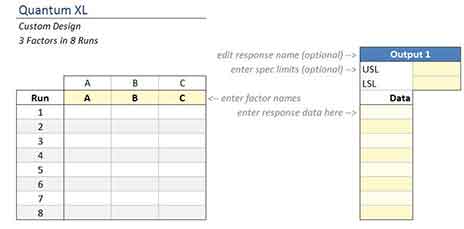
Quantum XL creates a design sheet with the instructions on the sheet in light grey. For example, "enter factor names" indicates you can overwrite "A, B, C" with actual names (see below).
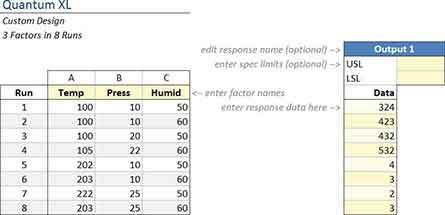
Type in the factor names, design matrix, and response (output) data. When you are done, the sheet may look like this…
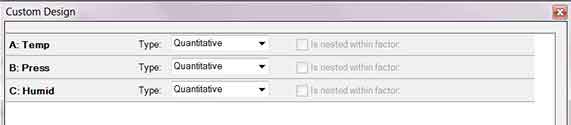
The first time you run the regression (select QXL DOE Tab > Analyze Design > Run Regression), Quantum XL will ask you for some more information about the design.
Define Type variables: Indicate if each factor is Quantitative or Categorical. If the factor is nested, indicate which variable it is nested within.
Define Interactions
All the available interactions will be displayed on the left. To add an interaction to the model, select the interaction and press the "Add >>" button.
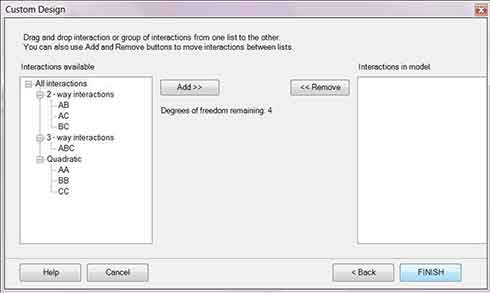
Interactions can be added as groups. For example, to add all the 2-way interactions, select "2-way interactions" in the left pane and press the Add>> button.